Check what agents will receive
Follow your files while quarry prepares them, read the passages it cut, and ask test questions before you publish.
Agents pay for passages, not for your files, so the passages are what you're selling. This page shows how to check them while your dataset is still a draft.
Follow your files
While quarry works on a file, its card on the Files tab shows Queued, then Preparing. Once the file is ready, the card shows how many passages it has. Large files and scanned PDFs take a few minutes. When every file is ready, quarry says so at the top of the tab.
A file that shows Needs attention couldn't be read. Its card says why, for example:
- the PDF has more than 2,000 pages;
- the file produced too many passages, so it needs to be split;
- reading it took too long.
Each file is tried three times on its own. After that, click Retry on the card, or the "Retry 2 failed" button (with your own count) at the top of the tab. If a file keeps failing, delete it and upload a corrected copy.
Delete a file
While the dataset is a draft, open the file's ⋮ menu on the Files tab, choose Delete, and confirm with Delete file. The file and its passages are gone for good. Past questions and payments stay: in Recent questions, Answered by shows a dash where the passage came from that file.
Read a file the way quarry did
Open a file to see the document on the left and what quarry made of it on the right.
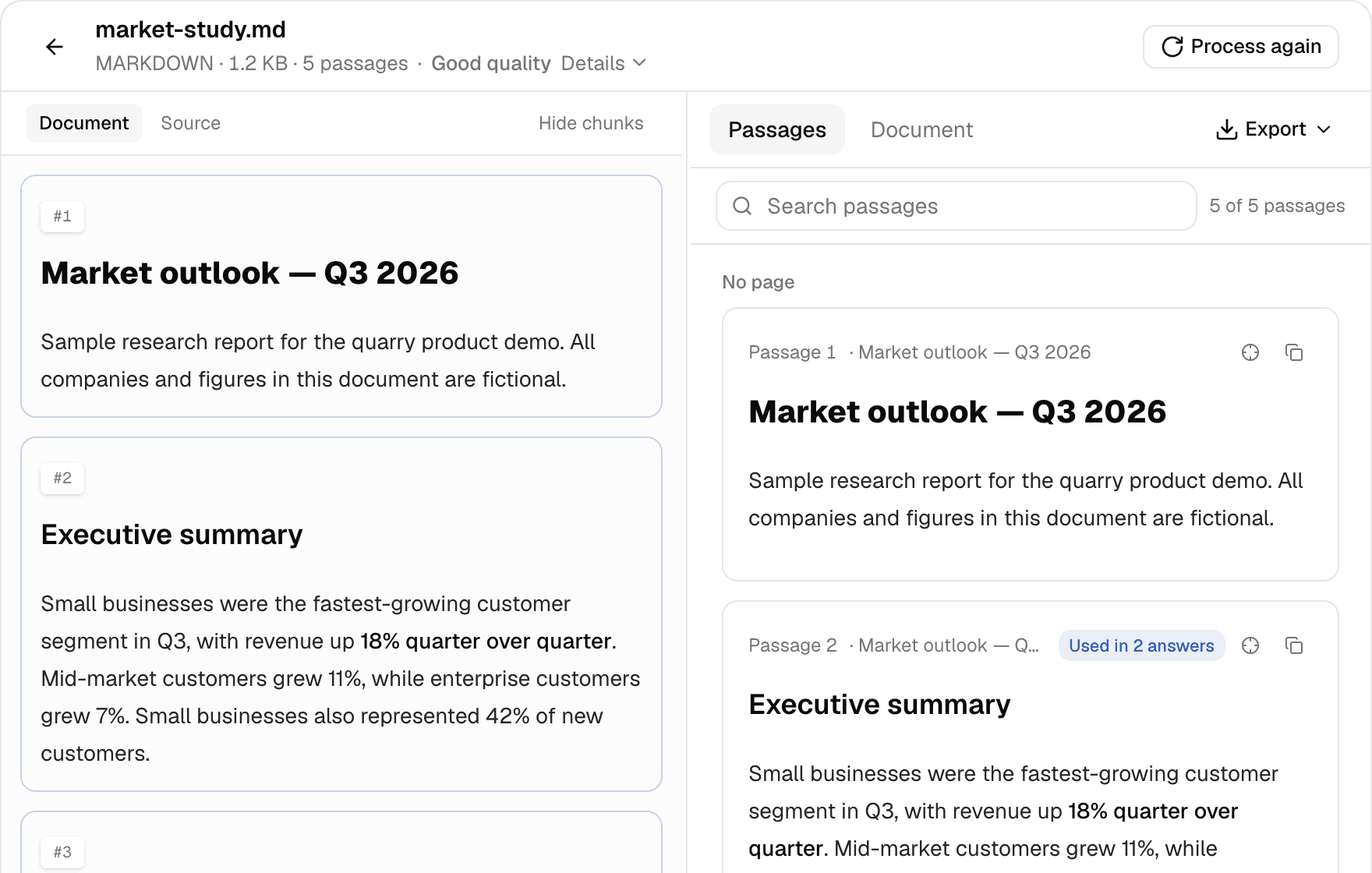
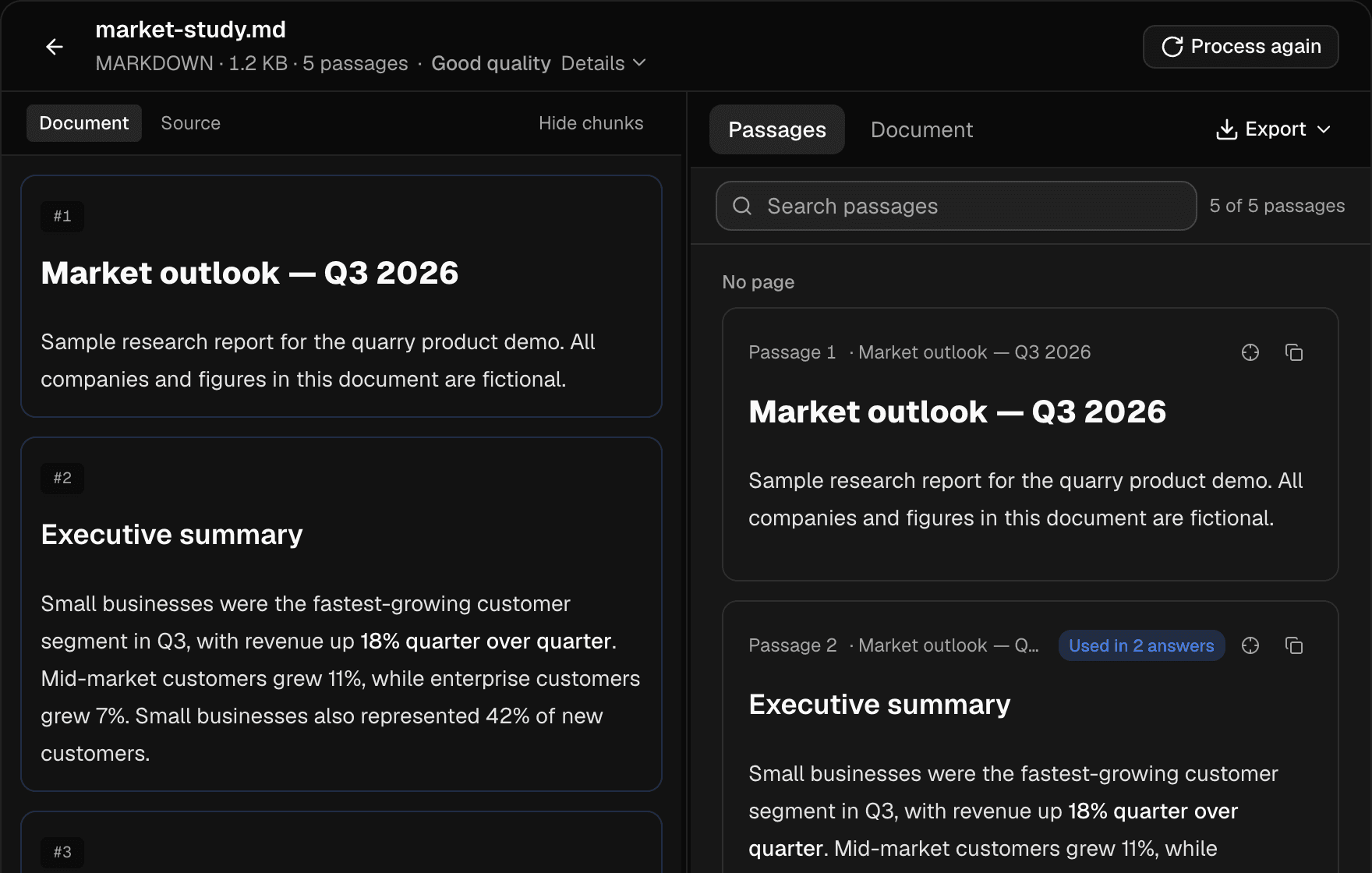
- The Passages tab lists every passage in order, grouped by page. "No page" means the file has no pages, as with text files and images.
- On the right, the Document tab shows the text quarry extracted, element by element.
- For many files, PDFs and PowerPoint included, the target icon on a passage (Show in document) points to where it sits in the original.
- Search passages finds a word or a heading across the whole file.
- Export lets you Download Markdown, Download JSON, or Copy passages.
The line under the file name rates how cleanly quarry read it: "Good quality", "Fair quality", or "Needs review". Fair often means a scan or an image; it's usually fine, but skim a few passages. Needs review means quarry wasn't confident: compare the passages with the document, and upload a cleaner copy if the text is wrong. A single passage can also carry a Needs review badge.
While the dataset is a draft, you can read a file again from scratch with Process again. Its passages are replaced, so their "Used in" counts start over. A live dataset is locked: unpublish it first.
Test like an agent
The Test tab runs the same search agents do (see Ask a test question). A few things to know:
- Choose how many passages come back: 5, 10, or 20, as an agent can.
- Try asking about suggests questions built from your headings.
- Best match marks the first passage. The bar next to Match compares each passage with that first one; it isn't an absolute score.
- Open in file takes you to the passage in its file.
Testing is free, and test questions don't show up in your sales.
When the passages aren't right
An agent pays for every question that gets an answer, even when your files cover the topic poorly: quarry always returns the closest passages it has. So make sure the passages are good, and tell agents what's inside in your dataset's description.
- If the text looks garbled, upload a cleaner copy, such as a PDF exported from Word rather than a scan.
- If a topic is missing, add the file that covers it.
- If passages cut across unrelated sections, add clear headings to the file and upload it again.
Once the passages look right, set your price and publish.